
How do I add or edit a one-time purchase in my account?Updated 2 months ago
Step 1: Login to your Loop Account (more information here)
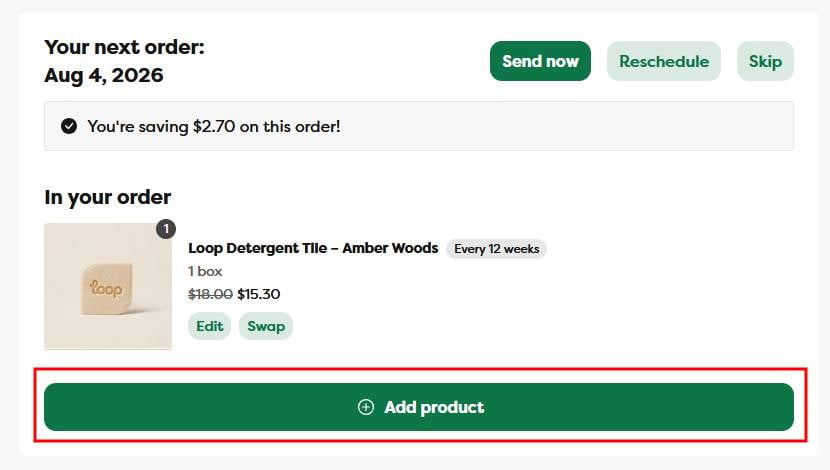
Step 2: In the customer portal home page (the Next Order page), click on the Add Product button in your Next Order section
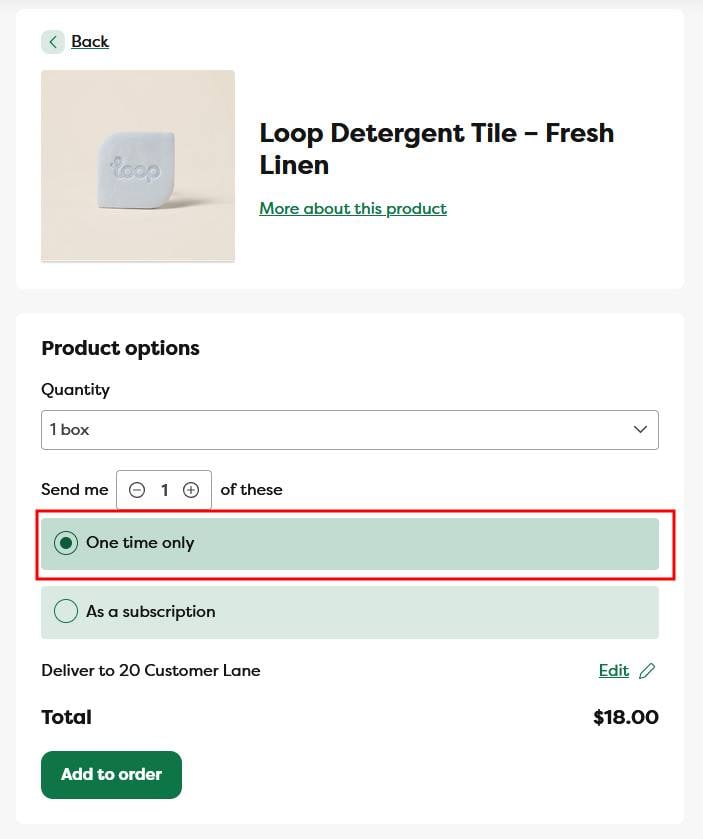
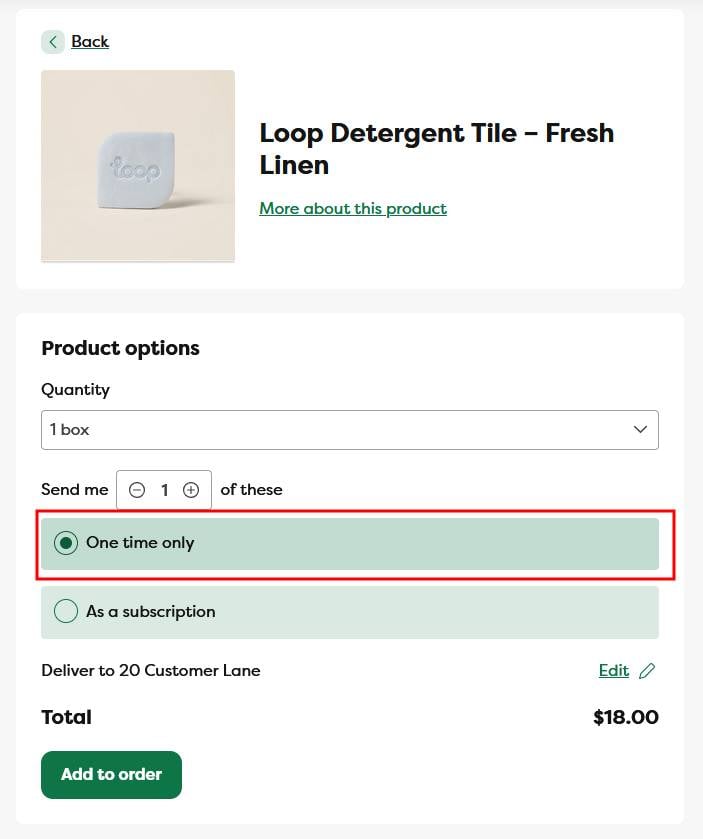
Step 3: On the new product selection page, you can manage the product addition. When you're ready, click on the Add to order button to add this product to your account
Below are the following actions you can take prior to adding the product to your account
- you can select the order quantity
- make sure to add the product as a one time purchase by selecting the one time only option
- if you have multiple addresses in your account, you can select which address to ship this product to. You can also add a new address
Step 4: A green confirmation notification will appear, and after a few moments the page will refresh to confirm that the new product was added to your account under your next order date
To edit a one-time order
Step 1: To edit a one-time order, just click on the Edit link/section under the one-time order product
Step 2: Click on the Remove product link at the bottom of the page
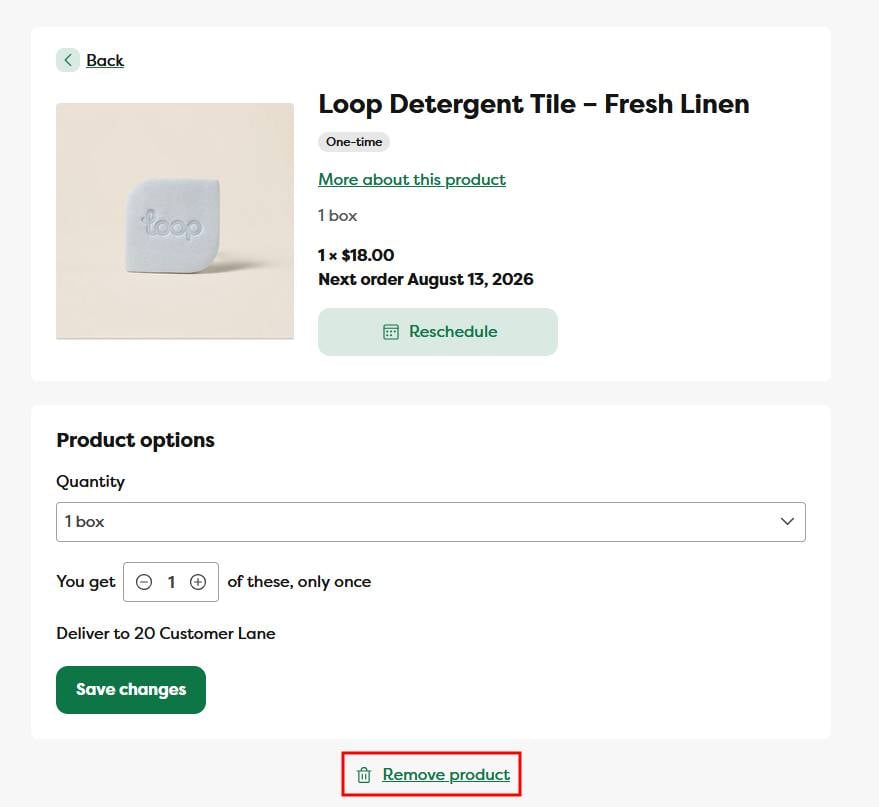
Below are the following actions you can take when editing a one-time order
- you can edit the order quantity
- you can reschedule the order date
- to cancel/remove the one-time order, click on the Remove product link